Review

Understand why the death happened

Review is the main workspace. It separates the order of deaths from the evidence attached to the selected player.

The three parts of Review

Pulls

Choose the active Current pull or a completed pull. Search by the name of a player who died, filter by duty, collapse the pull list, or use its saved group colors to distinguish separate duty instances.
Death Timeline

Shows death order, pull time, player, job, and fatal event. Clicking a death selects it and opens that player's lead-up directly beneath the row.

Selected Death

Summary explains the captured outcome. What-if tests alternate mitigation. Open in Replay jumps to the saved pull near that death.

Working with pulls and panes

Search Player nameOnly shows pulls containing a captured death whose player name matches the search.
Duty filterLimits recorded pulls to one duty. The same filter is available in Review and Replay.
Collapse PullsUses a narrow pull rail when you need more room for the timeline and selected-death details.
Resize panesDrag the dividers between the timeline and details. In a stacked layout, drag the horizontal dividers. Better Deaths remembers the sizes.
Delete pull historyThe trash button requires Ctrl + click and clears stored death recaps. This cannot be undone.

Reading the selected death

Fatal event or events

The red event is the captured hit or event tied to the KO. Damage is shown after mitigation. A multi-hit fatal sequence can contain more than one event rather than pretending only the final line mattered.

HP + shields

The killing row ends at 0 HP. The darker part of the bar preserves the HP lost to the hit, and shield loss receives its own darker overlay. Hover a bar for exact before, damage, and after values.

Mitigation context

Active mitigation, shields, enemy damage-downs, and target effects show what applied at the snapshot. Expired effects provide nearby context without claiming they covered the hit.

Enemy HP at death

When enemy HP was captured, Summary lists its percentage at the time of death. Hover it for exact HP and the captured entity identifier.

Non-hit and environmental KOs

If no normal damaging hit explains the KO, Better Deaths labels the result as a wall, environmental death, scripted KO, reconnect spawn KO, or another non-hit KO when the evidence supports it.

Chat post

Hover the ? beside Post information to chat to preview the exact recap lines. The preview follows the current Name Redaction and chat-branding settings. Choose a channel, then Ctrl + click the button to post it. Other Better Deaths users present can receive a local pull link with the recap.
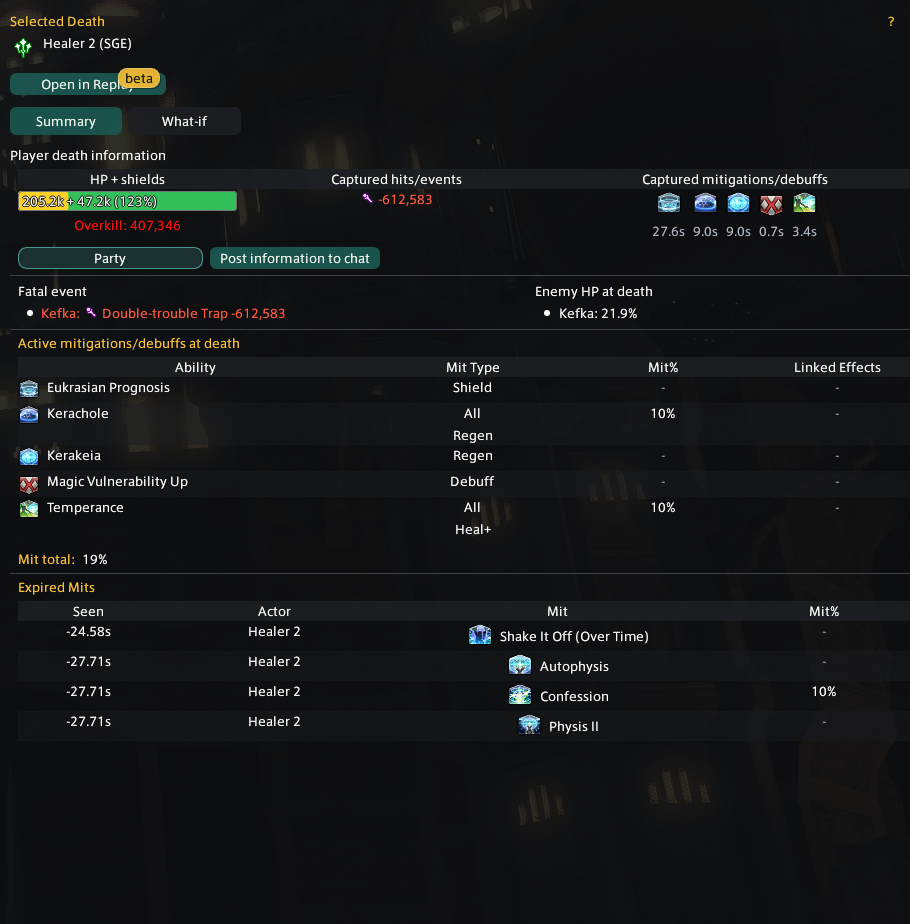
Better Deaths Selected Death Summary showing HP and shields, overkill, fatal event, active effects, enemy HP, and expired mitigation
Summary keeps the fatal result and its mitigation context together.

Using the lead-up

Click the selected timeline row again to collapse or reopen its lead-up. Drag the bottom edge to change how much vertical space it uses.

TimersShows or hides buff and debuff countdowns beside the captured status icons.
HealsShows or hides healing event rows. This changes presentation only and does not alter reconstructed HP.
Damage rowsShow source, HP and shields, post-mitigation damage, damage type, critical/direct-hit flags when known, and captured statuses around the event.
HP-only rowsPreserve observed HP movement even when no certain damage or healing event can be assigned to that exact snapshot.
Before / after barsTwo small bars with an arrow mean some result data was missing or arrived in a different snapshot. The arrow points toward the after-hit state, following Newest or Oldest order.
FocusedKeeps the selected-death view concise while retaining the information needed to understand it.
DetailedShows the fuller breakdown for deeper analysis.
NewestPlaces the death first, then works backward through the lead-up.
OldestPresents the full lead-up in time order before reaching the death.
10s / 30s / 1mChanges how much captured history Review displays. Older pulls may contain less than the selected duration.

What-if

Test a different mitigation plan

What-if replays the selected fatal damage through mitigation choices that were available in the captured context.

  1. Select a death with a captured damaging fatal event.
  2. Open What-if beside Summary.
  3. Select mitigation to see the projected damage and survival result change.
  4. Check targeting. A targeted tool only helps when the selected player could receive that application.
Available listOnly captured abilities with a calculable reduction are shown. Effects already active on the hit are left out of the extra-mitigation choices.
Damage typePhysical-only and magical-only reductions apply only when the fatal damage type matches.
Repeated toolsEquivalent status effects do not stack in What-if. Selecting the same mitigation from another source replaces the earlier selection instead of applying the percentage twice.
Chat controlsThe shared ? previews both messages. Available mits follows the selected death's captured options, while Outcome updates with the mitigation choices currently checked. Select a channel, then Ctrl + click Send available mits or Send outcome.
An estimate, not a verdict

The result depends on captured timing, damage type, status data, shields, and target eligibility. Use it to compare options, then confirm the plan with the party.
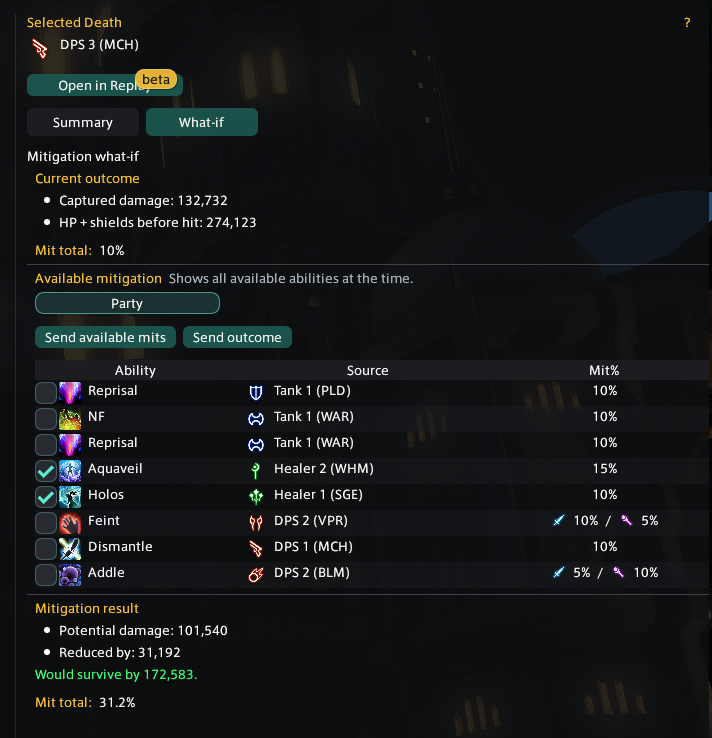
Better Deaths What-if tab with selected mitigation choices and a projected survival result
Select tools to update the projected outcome.